
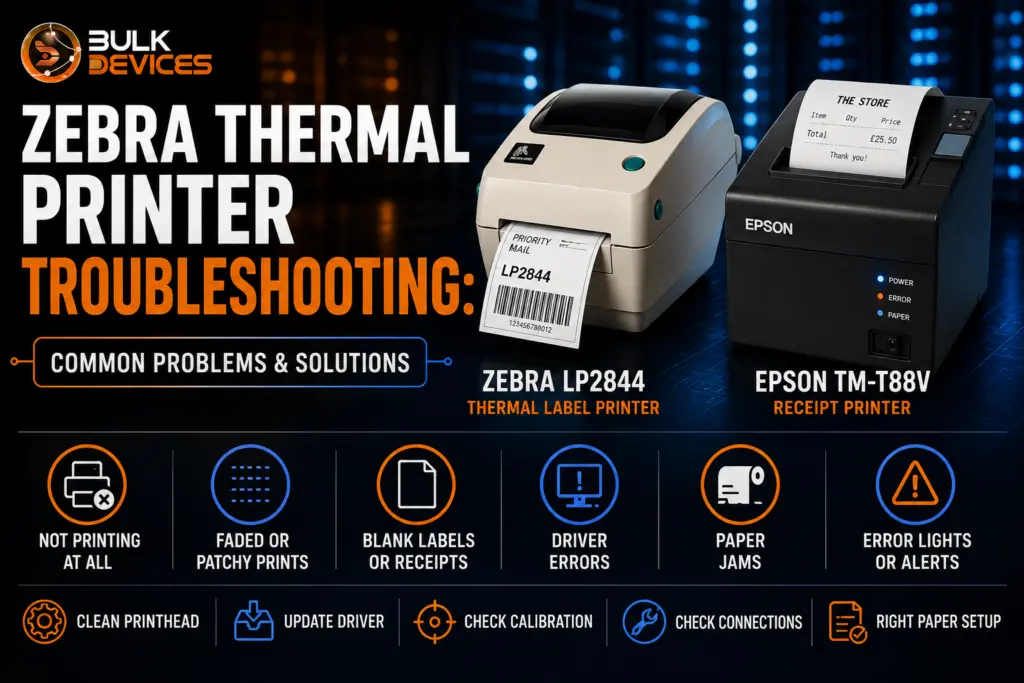
Zebra Thermal Printer Troubleshooting: Common Problems & Solutions
Quick Answer: Most thermal printer troubleshooting issues come down to five things: a dirty printhead, an out-of-date driver, the wrong paper orientation, a printer that needs recalibrating, or a loose cable. Fixing these five covers the vast majority of common thermal printer problems on both label and receipt printers.
- Clean the printhead before you replace anything — it solves more faults than people expect.
- Blank or faded prints are almost always a paper, driver, or printhead issue, not a broken unit.
- Error lights on label printers usually point to paper-out, a cover issue, or a head fault.
- Recalibrating after changing paper stock fixes most label-length and blank-label problems.
- If cleaning and calibration don’t help, the printhead or platen roller may simply be worn out.
If you run a warehouse, a shop counter, or an IT helpdesk, you’ll know the feeling: the label printer flashes red at the worst possible moment, or the receipt printer suddenly starts spitting out blank paper mid-queue. This guide walks through thermal printer troubleshooting for two of the most widely used models in the UK — the Zebra LP2844 thermal label printer and the Epson TM-T88V receipt printer — plus a set of universal fixes that apply to nearly any thermal printer, whatever brand is on the case. Whether you’re printing 4×6 shipping labels or restaurant receipts, the same handful of causes tend to be behind most faults, and most of them can be fixed in a few minutes without any tools.
Direct Thermal vs Thermal Transfer
When troubleshooting a thermal printer, it’s important to understand the type of printer you have in order to know how to fix the problem since the methods vary. In direct thermal printers, the printhead heats the paper directly to form the image, with no ribbon involved. Thermal transfer printers, on the other hand, use heat to melt ink from a ribbon onto the label as it moves under the printhead, creating more durable and lasting prints.
The Zebra LP2844 printer and the Epson TM-T88V printer are direct thermal printers. With: This matters for troubleshooting because it rules out an entire class of problems from the start — it doesn’t have any ribbon that can tangle, no ribbon tension to regulate, and no ribbon error codes to be concerned with on these two units.If you come across advice online about “ribbon wrinkle” or “ribbon out” errors, that IS a thermal-transfer issue and doesn’t apply here. With direct thermal printers (such as these), faded or blank output almost always comes down to the paper, the printhead, or the print settings — not a ribbon.
Most Common Thermal Printer Problems
Across brands and models, the same handful of faults come up again and again. Recognising the pattern helps you diagnose faster, whatever printer is sitting on your desk. Common thermal printer problems typically fall into these categories:
- Not printing at all — often a driver, connection, or spooler issue rather than a hardware fault.
- Faded or patchy prints — usually a dirty printhead, low heat setting, or worn label stock.
- Blank labels or receipts — frequently caused by paper loaded the wrong way round, or a printer needing calibration.
- Driver errors — Windows updates and driver conflicts are a common culprit, especially after a system update.
- Paper jams — misaligned paper, damaged rollers, or debris caught in the paper path.
- Error lights or status alerts — usually indicate paper-out, an open cover, or a printhead fault, and the exact meaning varies by model.
Zebra LP2844 Troubleshooting
The Zebra LP2844 thermal label printer has been a long-time favourite for shipping and warehouse labels, and most of the issues that are reported are simple to resolve if you know where to look. Generally, Zebra LP2844 troubleshooting comes down to four areas: printing and driver issues, light errors, poor print quality, and calibration.
Won’t Print / Driver Errors
If the LP2844 does not print at all, verify that the driver is correct. One of the most common reasons for a Zebra printer to appear as ready in Windows and not print is due to a driver conflict. Uninstall the current Zebra driver, reboot the PC, and reinstall the updated driver for your operating system from the Zebra support site. Also check that the printer is the default printer and the correct port (USB or serial) is selected in the printer properties.
Orange or Red Light Errors
When an orange light appears on the LP2844, the problem is typically related to the paper. This is usually because the paper has run out or the media isn’t being detected correctly. A red light usually indicates that there is a more serious issue, like a printhead issue, or the printer is in an error state and should be reset. First, open the cover and make sure the label roll is seated correctly, then close the cover firmly — a surprisingly frequent cause of light errors is that the cover isn’t fully closed. If the light remains on, unplug the printer, wait 10 seconds, then reconnect it and proceed with troubleshooting.
Blank or Garbled Labels
Blank labels are almost always down to one of three things: the label stock loaded back-to-front, the wrong print darkness setting, or the printer stuck in dump mode. Dump mode is a diagnostic mode that prints raw data instead of formatted labels, and it’s usually triggered accidentally by holding the feed button while powering on. To exit dump mode, turn the printer off, then on again without touching the feed button. Garbled or scrambled text on labels is often a driver mismatch — make sure the driver installed matches the LP2844 specifically, not a similar Zebra model.
Calibration Issues
If labels misfeed, print out of position, or a label is skipped between prints, the printer probably needs calibrating. This is particularly prevalent when changing to a different batch/brand of label stock, as different stocks come with slightly different sensor markings. To recalibrate, hold the feed button while powering the printer on, following the sequence in the LP2844 user manual, and let the printer feed through a few labels automatically until it learns the new stock size.
Epson TM-T88V Troubleshooting
Epson TM-T88V receipt printer is among the most widely used receipt printers for retail and hospitality businesses in the UK. Epson TM-T88V troubleshooting covers much of the same ground as the Zebra LP2844, but with a few issues specific to connectivity and the autocutter.
Not Printing / Connectivity
If the TM-T88V isn’t printing, start with the physical connection. Make sure that the USB or Ethernet cable is snugly connected at both ends and, if possible, change the cable or port, as damaged cables are a common source of problems that get intermittent. Then check that the right driver is installed and current, as one of the most frequent causes of a TM-T88V not communicating with the till system after an operating system or Windows update is that it has the wrong driver and/or it is not up to date. If the printer is networked and not connected via USB to the PC, you can check that it still has an IP address and hasn’t fallen off the network.
Faded or Blank Receipts
Faded or completely blank receipts on the TM-T88V usually come down to one of two things: the thermal paper orientation, or a dusty printhead. Thermal paper only prints on one side — the heat-sensitive coated side — so if a receipt comes out blank, check that the roll hasn’t been loaded upside down. If orientation isn’t the issue, printhead dust build-up from paper fibres is the next likely cause, and a quick clean (covered below) usually restores full-strength printing.
“Printer Not Available” Error
A “printer not available” message on till software usually points to a driver, connection, or bidirectional support setting issue rather than a fault with the printer itself. Check that the printer is powered on and connected before the till software starts, since many POS systems only detect the printer at launch. In the printer driver settings, confirm bidirectional communication is enabled, as some POS software relies on this to confirm the printer’s status back to the software.
Autocutter Jam
Paper jam, a slightly torn edge, or debris in the cutting path can all cause an Epson TM-T88V autocutter jam. Turn the printer off before clearing a jam. Open the cover and carefully remove any paper that is torn or snagged, without forcing it, then check that the paper edge is straight and not torn before reloading.
Universal Fixes for Most Thermal Printers
Whatever brand or model you’re dealing with, these steps resolve the majority of everyday faults. Work through them in order before assuming a hardware fault:
- Restart the print spooler. On Windows, stopping and restarting the Print Spooler service clears stuck jobs that can block all future prints.
- Reinstall the driver. Uninstall the current printer driver completely, restart the computer, then install the latest version from the manufacturer’s site.
- Clean the printhead. Power off the printer, open the cover, and gently wipe the printhead with an isopropyl alcohol cleaning pen or lint-free cloth.
- Check cable connections. Reseat USB, serial, or network cables at both ends, and try a different cable if the fault continues.
- Recalibrate the printer. Run the manufacturer’s calibration sequence, especially after changing paper or label stock.
- Check for paper or label mismatches. Confirm the width and type of paper loaded matches what the printer and driver are configured for.
Symptom, Cause & Fix Quick Reference
The table below covers the most common symptoms reported for the Zebra LP2844 and Epson TM-T88V, matched to their likely cause and the quickest fix to try first.
| Symptom | Likely Model | Likely Cause | Quick Fix |
|---|---|---|---|
| Printer shows ready but won't print | LP2844 | Driver conflict | Reinstall the latest driver |
| Orange light stays on | LP2844 | Paper not detected/cover open | Reseat label roll, close cover firmly |
| Red light, printer stops | LP2844 | Printhead fault or error state | Power cycle the printer |
| Labels print blank | LP2844 | Stock loaded backwards or dump mode | Reload label stock correctly; exit dump mode |
| Labels skip or misalign | LP2844 | Needs calibration | Run feed-button calibration sequence |
| No print output at all | TM-T88V | Loose or faulty cable | Reseat or replace USB/Ethernet cable |
| Receipts print blank | TM-T88V | Paper loaded upside down | Reload thermal paper the correct way round |
| Receipts print faded | TM-T88V | Dust on printhead | Clean printhead with alcohol pen |
| Printer not available" message | TM-T88V | Driver or bidirectional setting | Check driver, enable bidirectional support |
| Paper won't cut cleanly | TM-T88V | Autocutter jam or worn blade | Clear jam; inspect cutter blade if repeated |
Repair or Replace? Worn Parts to Watch For
Most of the faults can be corrected by cleaning and calibration, although some parts can become worn over time and cannot be cleaned. Printhead wear is the most common issue with heavy usage, shown by a faint vertical line or patch that never prints no matter how dark the setting — a sign the printhead needs replacing rather than cleaning. The platen roller wear is the part that pushes paper through the printhead; over time, it can get flattened or even develop a glazed surface, and is often the root of inconsistent feeding or slight horizontal banding in prints.
Heavy daily use may cause the cutter blade to wear down or chip on receipt printers, and cutter blade wear is the usual reason an autocutter jam keeps recurring even after debris has been cleared.
As a general guideline: When cleaning and calibration do not improve the results of your print or feeding, it’s time to examine these parts of the machine, not necessarily the entire machine. BulkDevices has printheads, platen rollers, and cutter blades for both models available in our thermal printer spares and consumables range, meaning that worn components don’t require a complete printer replacement.
Preventive Maintenance Checklist
A small amount of regular upkeep prevents most of the faults covered above from happening in the first place:
- Clean the printhead every one to two weeks in busy environments, or monthly in lower-use settings.
- Use good-quality, correctly sized paper or label stock rather than the cheapest available option.
- Remove dust and paper fibres from the paper path and rollers regularly.
- Keep printer firmware and drivers up to date, especially after operating system updates.
- Check cable connections periodically, and replace any showing signs of wear or fraying.
Frequently Asked Questions
Why is my Zebra LP2844 not printing?
The most common cause is a driver conflict, especially after a Windows update. Uninstall and reinstall the Zebra LP2844 driver, confirm it’s set as the default printer, and check that the correct port is selected before testing again.
Why is my Epson TM-T88V printing blank receipts?
Blank receipts on the Epson TM-T88V are usually caused by thermal paper loaded upside down, since it only prints on the heat-sensitive side. If reloading the paper correctly doesn’t help, a dusty printhead is the next likely cause.
What does a flashing orange or red light mean on a Zebra label printer?
On the Zebra LP2844, an orange light generally means a paper or cover issue, while a red light usually indicates a more serious fault such as a printhead problem. Reseating the label roll and power-cycling the printer resolves most cases.
How do I clean a thermal printhead safely?
Power off the printer fully, open the cover, and gently wipe the printhead with an isopropyl alcohol cleaning pen or lint-free cloth. Never use water, solvents, or abrasive materials on the printhead surface.
Why does my thermal printer need calibrating and how often?
Calibration lets the printer learn the exact size and sensor markings of the paper or label stock loaded. Recalibrate whenever you switch to a different stock, or if labels start feeding or printing out of position.
How do I know if I need a new printhead instead of a clean?
If a faint line or patch never prints even after cleaning and adjusting darkness settings, the printhead has likely worn out rather than just gotten dirty, and replacement is the more reliable fix.
Keeping Your Thermal Printer Running
Most thermal printer troubleshooting comes down to the same short list of causes, whether you’re running a Zebra label printer in a warehouse or an Epson receipt printer on a shop counter: a dirty printhead, an outdated driver, incorrect paper loading, or a printer overdue for calibration. Working through these before assuming the worst will resolve the large majority of everyday faults on both the LP2844 and TM-T88V. When a part genuinely has worn out, BulkDevices carries the spares to get you back up and running, and you can see our full range of thermal and receipt printers at BulkDevices if it’s time to consider a replacement unit rather than another repair.