
Quick Answer: To choose the right Gigabit Ethernet switch, work out your port count, whether you need managed features like VLANs (Virtual Local Area Networks), and whether your devices need Power over Ethernet (PoE). Then match those needs to a switch, not the other way round.
- Count the devices you need to connect now, then add room to grow
- Decide if you need a managed switch, an unmanaged switch, or something in between
- Check if any connected device (phones, cameras, access points) needs PoE
- Look at uplink options, such as SFP ports, if you’ll connect switches
- Remember: a switch handles your local network, not your internet connection — that’s a router’s job
Choosing a switch shouldn’t feel like guesswork
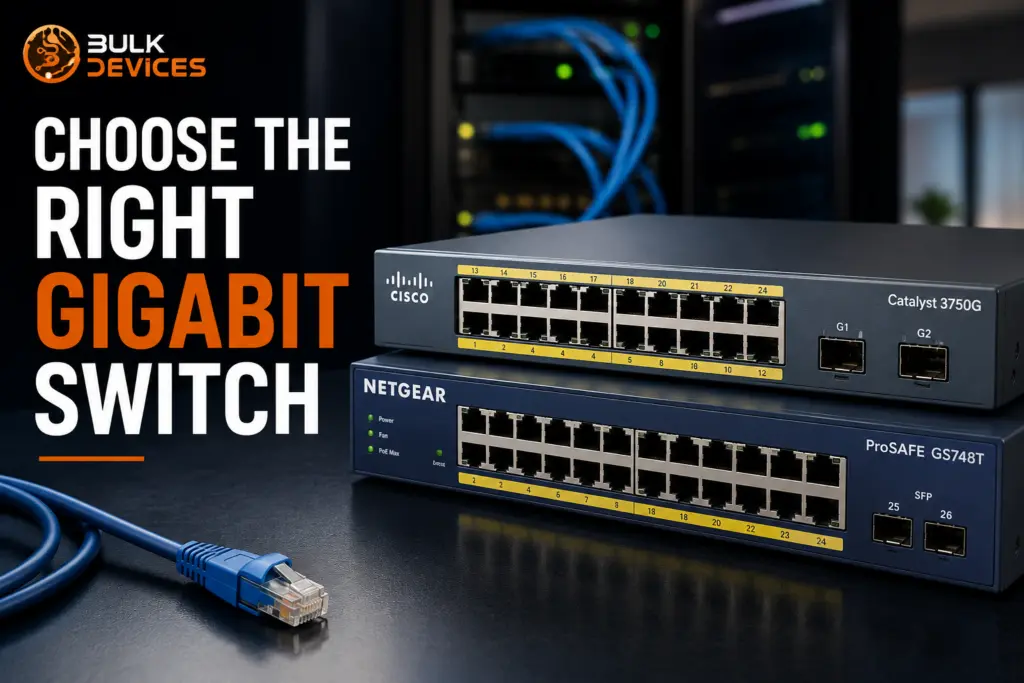
If you’ve ever looked at a spec sheet full of port counts, PoE budgets, and acronyms and felt no closer to a decision, you’re not alone. This gigabit switch buying guide discusses the real-world issues that matter – port count, management level, PoE, and uplinks – with the help of two popular, real switches along the way: the Cisco Catalyst
WS-C3750G-24TS-S and the NetGear GS748T. We’ll also cover a question that trips up a lot of buyers: when a switch alone doesn’t cut it, and you need a router as well.
By the end, you should be able to look at your own network and know roughly what you’re shopping for.
What a Switch Does (and How It Differs From a Router)
A switch is a device within the same LAN (local network) that allows devices (computers, printers, servers, access points, etc.) to communicate directly with one another. It reads the destination address of each piece of data and forwards it straight to the correct device.
A router does a different job. It links one network to another, typically from your local network to the internet. This is the heart of the switch vs router difference: A switch works inside your building to direct traffic; a router works outside your building, directing traffic to your WAN connection or between different buildings.
Most small networks will require both, not either/or. Your switch is sending traffic out from all desks, printers, and access points within the office. Your router then sends anything that’s meant for the rest of the internet or another site out over your WAN link. We’ll come back to this later, because there are situations — particularly for branch offices — where a router does something a switch simply can’t.
Key Factors to Consider Before Buying
Before you look at a single model number, it helps to answer a few questions about your own setup. These are the factors that actually decide which switch fits, and they matter far more than brand names.
- Port count — how many devices need a wired connection today, and how many might you add in the next year or two?
- Management level — do you need to configure VLANs and monitor traffic, or will “plug in and it works” do the job?
- PoE — will any connected device draw its power from the network cable itself?
- Uplinks — do you need to connect this switch to another switch, or to a firewall, over fibre?
- Layer 2 or Layer 3 — do you need the switch to route traffic between different VLANs, or just switch within one?
- Is a stackable switch setup worth considering if you expect to add more units later?
None of these questions has a single “correct” answer for every business. A five-person office and a fifty-desk floor plan will land on very different specs, even if both just want “a good gigabit switch.” Treat this list as your shopping brief before you start comparing products.
Managed vs Unmanaged vs Smart Switches
Managed vs unmanaged switch models are based on control: a managed switch can be configured, monitored, and segmented; an unmanaged switch connects devices for which no settings are to be touched.
The easiest type of switch is an unmanaged switch. It’s plug-and-play — no login screen, no configuration, and no ongoing admin. For many small configurations, that’s the correct answer: a small back office with six desks and a shared printer doesn’t need a management interface it will never open.
At the other end is a managed switch. You can use VLANs to isolate departments or traffic types, and separately use the switch’s other managed features to monitor port-level usage, set up link aggregation, and control which devices are allowed to connect.
That’s when VLAN configuration can get you the job done, which you might need when you want to keep, say, the data traffic for your guest WiFi separate from the data traffic for your finance team on the same physical switch.
In between is the smart switch vs. managed switch category, often referred to as “web-managed. Smart switches, which typically have a more limited feature set, provide a simplified web interface to some of the more commonly managed features — basic VLANs, monitoring, and port settings — but do not have the depth or complexity of an enterprise-grade managed switch.
For the real world, the NetGear GS748T is a good example. It’s a component of NetGear’s smart/web-managed range, offering buyers VLAN support and a dashboard that’s managed by a browser, with none of the enterprise switch operating system learning curve. A smart switch, such as this, is a no-brainer when an SMB wants to do something a bit more with some control — such as separating VLANs and watching the port activity — but doesn’t have a network engineer available. The full specification the NetGear GS748T ProSafe 48-port smart switch is available on our website.
If your business is expanding, it may be worthwhile to be a little more manageable in case you need it one day. VLANs are difficult to add after your network has grown to a point that it’s outgrown the capabilities of an unmanaged switch.
How Many Ports Do You Need?
The trick to getting the port count right is to count all the wired devices you have today, then give yourself some realistic growth margin, and then round up, not down, because it’s much more likely that you will run out of ports than buy a few too many.
This is where the old 24-port vs. 48-port switch dilemma enters, and it’s better to go over the numbers than guess them.
The Cisco Catalyst WS-C3750G-24TS-S is a 24-port managed switch that is ideal for a single-floor office, a medium-sized server room, or a department that is not planning on expanding and scaling rapidly in the near future. 24 ports cover a reasonable number of desks, a handful of access points, and a few printers or shared devices, with some capacity to spare. The Cisco Catalyst WS-C3750G-24TS-S 24-port switch is available on our site.
The NetGear GS748T, on the other hand, has 48 ports—double the density in about the same space. That’s a better solution for a larger open-plan office, one with several departments using it, or any business with known growth in headcount (and device counts) over the next couple of years.
Neither is inherently better — they’re built for different scales of network. Buy too few ports, and you’ll be shopping for a second switch sooner than planned; buy far more than you need, and you’re paying for capacity that sits idle. In a 10-desk office, a 48-port switch is just “overkill” in terms of rack space and cost.
If you need to expand your network of a single switch anytime soon, you should consider a stackable switch approach, too: Several switches can be connected together and controlled as one logical switch, whereas a single gigantic one can be purchased now with the hope that it will last until you need it to.
The rule of thumb is to add 20-30% to the number of wired devices you currently have, and choose the port count that fits within that amount.
Layer 2 vs Layer 3 Switching Explained
The difference between 2- and 3-layer switching is that the 3-layer switch can route traffic between different networks, whereas the 2-layer switch can only route traffic within an individual network.
– A Layer 2 switch forwards traffic based on MAC addresses only, which is adequate for most simple office networks where all traffic is on one VLAN, or for some networks where inter-VLAN routing is performed on some other device, e.g., a firewall.
– A Layer 3 switch integrates IP-based routing directly into the switch. It will matter when you start to create multiple VLANs, and you need to route traffic between them, such as a workstation on the “Office” VLAN wanting to print to a device on the “Printers” VLAN, since routing has to be performed by another device if it’s a pure Layer 2 switch.
To summarize: If you have one flat VLAN, or you already have VLAN routing performed on another router or firewall, then Layer 2 will suffice. If you wish to have inter-VLAN routing done by the switch itself and not require adding another box to the rack, then check for Layer 3 functionality. This choice typically doesn’t matter until your network is complex enough to have more than one VLAN in the first place.
PoE — Do You Need It?
Power over Ethernet (PoE) matters if any device on your network draws its power through the same cable that carries its data, instead of needing a separate power socket.
The most common PoE devices in an office are IP phones, wireless access points, and network cameras. Instead of running a power cable to each ceiling-mounted access point or desk phone, PoE lets a single Ethernet cable do both jobs. That’s a real saving in cabling cost and installation time, particularly for access points mounted somewhere without a nearby power outlet.
If none of your devices need it, there’s little reason to pay extra for a PoE-capable switch — it’s an added cost for a feature you won’t use. If you do have PoE devices, or plan to add some (extra access points as you expand Wi-Fi coverage, for instance), check the switch’s total PoE power budget rather than just the port count. A switch can technically have PoE on every port but not enough total wattage to power them all at once — this is worth confirming against your specific device list before buying.
Uplink & Expansion Ports (SFP)
SFP stands for Small Form-factor Pluggable — a slot that accepts interchangeable fibre transceiver modules, most commonly used to connect one switch to another, or a switch to a firewall, using a fibre connection instead of standard copper cabling.
The SFP uplink ports are important in two situations: first, when the distance requirements of copper cabling are a concern when connecting switches within a building, and second, when a fast, dedicated link is required between the core switch and other network equipment without having to share bandwidth on the same ports.
Fibre uplinks via SFP also future-proof a purchase somewhat — even if you don’t need fibre connectivity today, having the option there means you’re not locked out of it later without buying a new switch. If you’re planning to connect multiple switches as your network grows, checking SFP availability before you buy is worth the extra few minutes. You can browse our full range of network switches to compare SFP options across models.
When a Switch Alone Isn’t Enough: Adding a Router
A switch controls traffic within the LAN; it does not know anything about the Internet or a second physical location — and there are common scenarios where a business requires a router to operate in tandem with its LAN switch instead of in place of it.
The clearest example is branch office connectivity. For a small remote site, whether it is a satellite office, a shop, or a temporary site, you often find that you have a WAN connection that cannot be totally based upon a fixed-line internet connection; either because a fixed line isn’t available, or because you want a backup if one drops. That’s where a router such as the Cisco C887VAG-4G-GA-K9 4G LTE router can help: It keeps a site online over the mobile network if the primary WAN link fails, or it can serve as the primary connection where laying a fixed line isn’t practical.
Again, it is important to understand that this device is not a switch, nor is it a replacement for a switch. There still needs to be a switch at the site to tie its desks, printers, and access points together at the site level. The role of the router is only on the WAN side, to get that local network’s traffic out to the internet or back to head office, and the 4G is either on the main path or the failover path. The Cisco C887VAG-4G-GA-K9 4G LTE router and the complete specification are viewable on our site.
If you have a single site and you’re using a fixed-line internet connection that is stable, you might already have all the routing you need in your existing router/firewall, and this isn’t something you’ll want to duplicate. It’s relevant when the need for WAN resilience, or a fixed-line service at a site, is a real issue you are addressing.
WS-C3750G-24TS-S vs GS748T: Side-by-Side
Both switches are well-established and reliable, but they’re built for different scales of network rather than one being objectively better. The right pick comes down to how many ports you need and how much control you want over the network, not the model name. Here’s how they compare on the factors that actually matter when choosing between them
| Feature | Cisco Catalyst WS-C3750G-24TS-S | NetGear GS748T |
|---|---|---|
| Port count | 24 gigabit ports | 48 gigabit ports |
| Management level | Fully managed, Layer 3 capable | Smart/web-managed |
| Best suited to | Mid-sized office or department, existing Cisco environments | Larger office, growing device count |
| VLAN support | Yes, with routing capability | Yes, VLAN configuration via web interface |
| Uplink options | SFP uplinks available | SFP uplinks available |
| Typical use case | Networks needing routing between VLANs on the switch itself | Networks needing high port density with simpler management |
Either of these is a viable choice, and the choice between them should depend more on the number and management requirements of your ports, and less on whether one is objectively better.
Common Mistakes When Choosing a Switch
A surprising number of switch purchases go wrong not because of the switch itself, but because of decisions made before it was even ordered. These are the recurring mistakes worth avoiding:
- Buying too few ports — leaving no headroom for the next new hire, printer, or access point
- Ignoring the PoE power budget — buying a PoE switch without checking it can actually power everything you plan to connect
- Skipping managed features you’ll need later — choosing unmanaged to save money, then needing VLANs six months in
- Overlooking uplink needs — no SFP ports available when it’s time to connect a second switch
- Treating a router purchase as optional at a branch site — then discovering there’s no reliable way to get that site online
Most of these will be about purchasing for today’s network, but not for next year’s network. There’s a cost to a little headroom, a cost to a little management capability, and a cost to a little uplink options, but it costs little up front, and it saves lots of trouble later.
Frequently Asked Questions
Do I need a managed or an unmanaged switch?
Use a managed switch if VLANs, traffic monitoring, and/or control over individual ports is required. If you’re just in need of devices to connect and work without any continuous configuration, an unmanaged switch works better and is less expensive.
How many switch ports should I buy for future growth?
Calculate the number of devices that are plugged in, then allow for about 20-30% growth. Rounding up to the next standard port count (e.g., 24 ports or 48 ports) will typically be more cost-effective than purchasing a second switch when needed.
What is the difference between Layer 2 and Layer 3 switching?
A Layer 2 switch forwards traffic within one network using MAC addresses. A Layer 3 switch can also route traffic between different VLANs using IP addresses, without needing a separate router.
Do I need PoE on my switch? You need PoE if any connected device, such as an IP phone, access point, or camera, draws power through its network cable. If none of your devices require it, a non-PoE switch is more cost-effective.
What is the difference between a switch and a router?
A switch connects devices within your local network, letting them communicate directly. A router connects your local network to another network, most commonly the internet or a separate site.
When would I need a 4G LTE router alongside my switch?
A 4G LTE router is useful at branch or remote sites where you need WAN failover if the main internet connection drops, or where a fixed-line connection isn’t available.
Finding the Right Fit for Your Network
It’s not about choosing the switch with the most impressive spec sheet, but finding one that fits your network’s requirements, port count, management level, PoE, and uplinks.
The two worked examples above cover a broad spectrum of real-life scenarios, from a single busy office to a multi-department floor — a useful starting point for most small and growing businesses hunting for the best gigabit switch for small business UK buyers can rely on.
When your network extends beyond one site, it’s worth considering more than just a switch – your WAN connectivity – because a failover-capable router can mean the difference between having a branch site up and running during an outage or not. BulkDevices stocks both switches and routers with UK-wide delivery, so whichever direction your network is heading, you can see our full networking range at BulkDevices and find the right fit without overpaying for capability you won’t use.