
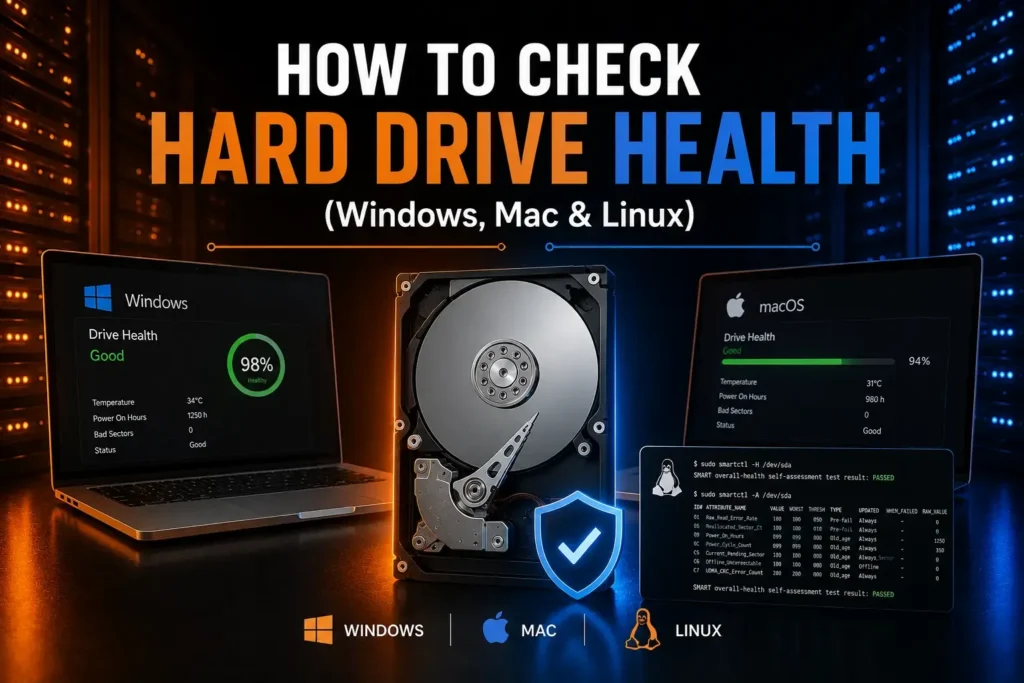
Hard drives do not often die unexpectedly. If you are experiencing slow performance, system crashes, or file corruption, it’s important to understand how to check hard drive health to catch any issues with your drive before they can cause catastrophic data loss. While traditional HDDs degrade over time, so do modern SSD, so regular diagnostics are vital to help maintain a smooth-running system and keep your personal files safe.
Quick Answer — How to Check Hard Drive Health
If you need a quick hard drive health check, here is the fastest way to get an accurate status update based on your operating system:
- Windows: Open Command Prompt and run wmic diskdrive get status, or download CrystalDiskInfo for a detailed breakdown. Run CHKDSK to scan for disk errors.
- Mac: Open Disk Utility, select your drive, and check the SMART status or run First Aid.
- Linux: Install smartmontools and run smartctl -a /dev/sda in the terminal.
Signs Your Hard Drive Is Failing
Before a drive completely dies, it usually leaves a clear trail of warning signs. As these are the early warning signs, you can get your important files backed up before you lose them all due to hardware failure.
Watch out for these common warning signs:
- Severe System Slowdowns: Exceptionally long load times, random freeze-ups, or sudden unresponsiveness during basic file operations.
- Unusual Noises: Distinct clicking, scraping, grinding, or loud humming sounds coming directly from a mechanical HDD.
- Frequent System Crashes: Sudden Blue Screens of Death (BSOD) on Windows or frequent kernel panics on macOS.
- Corrupted Files & Bad Sectors: Files that refuse to open, missing folders, or repeated disk error prompts.
- Boot Failures: Your computer repeatedly fails to locate the main boot drive during startup.
If you experience two or more of these symptoms simultaneously, discontinue heavy use of the device and make a new backup of files.
How to Check Hard Drive Health
Here’s how to check it on each OS below:
Windows
Windows has many built-in utilities to handle these tasks quickly, as well as a wide variety of powerful third-party tools:
- WMIC Command (Quick Check): Press Win + R, type cmd, and then press Enter. Enter the command wmic diskdrive get status and press Enter. It returns “OK” if the basic health parameters of your drive are OK.
- CHKDSK utility in To scan and repair file system structure errors run command Prompt as an admin and execute chkdsk C: /f /r to scan and repair file system structure errors. Scan for file bugs and isolate bad sectors to prevent the operating system from writing to damaged sectors.
- CrystalDiskInfo: Download this free tool to check HDD health or check SSD health with CrystalDiskInfo for more in-depth checks. It directly reads the telemetry data of the drive and provides a color-coded health rating immediately.
Mac
The Apple diagnostics tools make it easy to check macOS drives:
- To launch Spotlight, press Cmd + Space, type Disk Utility, and press Enter.
- Click on your primary internal drive located in the sidebar on the left. Click on your primary internal drive in the sidebar on the left.
- Look for SMART status on the bottom information panel. It should say “Verified”.
- At the top, click the First Aid button and run it. This will check the drive volume for file system corruption, and it will fix minor disk permissions.
Linux
For Linux users, the terminal commands provide direct control of the hardware diagnostics:
- In the terminal, install smartmontools with your package manager (e.g., sudo apt install smartmontools).
- Use lsblk or fdisk -l to find out which drive label is your drive.
- Execute the full drive assessment command: sudo smartctl -a /dev/sda (where sda is the name of your drive, e.g., nvme0n1 for an NVMe SSD).
- Check the “SMART overall-health self-assessment test result. Look for the line: SMART overall-health self-assessment test result: PASSED
Understanding SMART Status
SMART (Self-Monitoring, Analysis, and Reporting Technology) is an automatic monitoring system that is embedded within the latest storage drives. It monitors internal operational parameters to anticipate hardware failures.
Key metrics to monitor include:
- Reallocated Sectors Count: The number of memory areas that were damaged and then had to be retired and remapped to healthy memory sectors on the drive.
- Current Pending Sector Count: Bad sectors that are pending to be remapped on the next write operation.
- Drive Temperature: High operating temperatures greatly reduce disk life.
Important Diagnostic Tip: A SMART status of “OK” does not necessarily indicate that a drive is healthy. SMART only detects degradation or failure of the physical components, and not sudden electrical surges or all controller chips failing. Use a real-time error count and system behaviour over time, rather than just a generic pass/fail indicator.
Best Hard Drive Health Tools
While built-in tools give quick pass-or-fail answers, dedicated software gives deeper insights. Here is how top utility tools compare:
Hard Drive Health Tools Comparison
| Tool | Platform | Best For |
|---|---|---|
| CrystalDiskInfo | Windows | Comprehensive general diagnostic readings and real-time drive monitoring |
| SeaTools | Windows, macOS | Deep sector testing and firmware updates specifically for Seagate drives |
| WD Dashboard | Windows | Performance monitoring, health tracking, and firmware management for Western Digital drives |
| Samsung Magician | Windows, macOS | Optimizing performance, checking health, and managing encryption on Samsung drives |
Using brand-specific software (like SeaTools, WD Dashboard, or Samsung Magician) is often ideal because those tools access proprietary diagnostic tests tailored directly to that manufacturer’s hardware specifications.
When Should You Replace a Hard Drive?
It’s important to differentiate between software bugs and real hardware wear. Commands may be able to correct file system corruption, while physical component wear needs immediate hardware replacement.
If you experience any of the following, you should change your drive ASAP:
- The number of Reallocated Sectors and Pending Sectors keeps increasing during routine checks.
- SMART status utilities will directly alert a critical error or warning.
- Mechanical drives start making mechanical noises (click, grinding, or scraping sounds).
- The connection to the drive is often lost, or the drive is not recognized at all.
Software such as CHKDSK does not correct hardware failures. When physical damage has been incurred, the focus should move from repair to data recovery and moving your files to a new drive.
If you’re planning to replace a failing drive with a faster SSD, our NVMe vs M.2 SSD guide will help you choose the right upgrade based on your motherboard compatibility and performance needs.
Frequently Asked Questions
How do I check my hard drive health?
You can check hard drive health with certain system command-line tools that are built-in, such as WMIC in Windows, Disk Utility in Mac, or smartctl for Linux. If you really want to know more, there are third-party software tools such as CrystalDiskInfo that also provide in-depth health status reports.
What is SMART status?
Operational information such as operating temperature, power-on hours, and sector read errors are built-in metrics for monitoring that are tracked through SMART status. It notifies people when a drive begins exhibiting signs of hardware failure.
Is CrystalDiskInfo safe?
Yes, CrystalDiskInfo is a fully trusted, safe, open-source IT tool. It reads hardware telemetry data without changing, moving, or deleting your personal files safely.
Can CHKDSK fix a failing hard drive?
No, CHKDSK will not fix any physical errors on a drive. It can only correct file structure errors and can only mark bad sectors as unusable, making your system stop writing data to the unstable areas.
Conclusion
The most effective way to protect your important files is to make sure you keep an eye on storage health on a regular basis. Your drive’s internal diagnostics and trusted manufacturer tools will help you identify any hardware problems and bad sectors at an early stage. Keep an up-to-date backup of important files, and replace a failing storage device before it fails altogether. Knowing how to check hard drive health keeps you one step ahead of unexpected system crashes.