
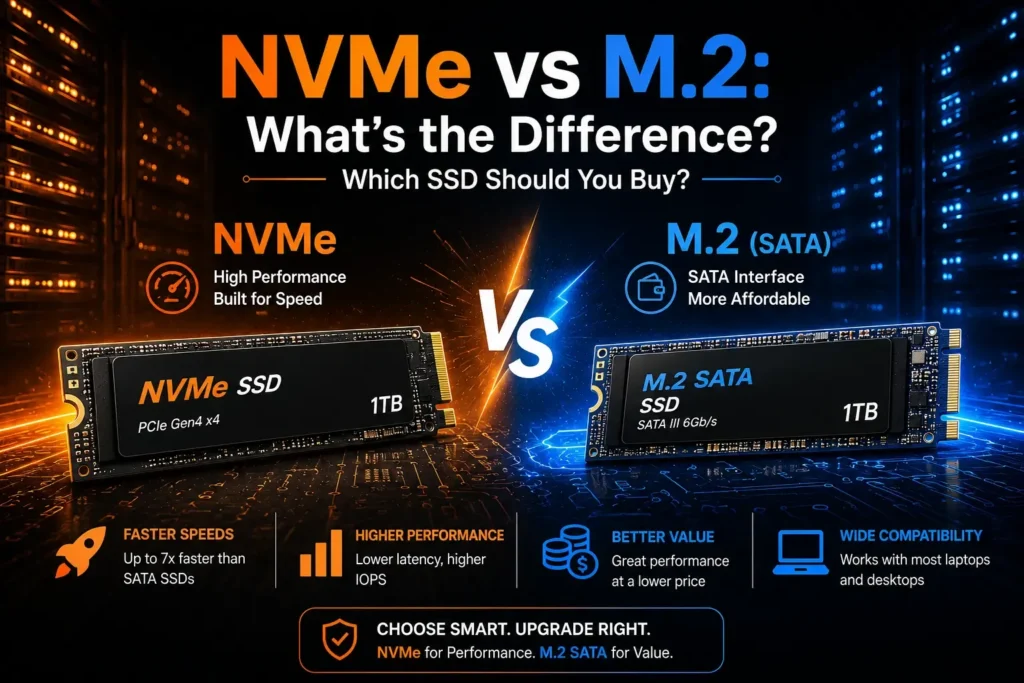
Most buyers assume NVMe and M.2 are two competing types of SSDs, and that’s exactly where the confusion starts. In reality, when you’re comparing NVMe vs M. 2, you’re not comparing two rivals at all — you’re comparing a shape to a language. M.2 is simply the physical form factor of the drive, the slim connector that plugs straight into your motherboard. NVMe, on the other hand, is the protocol that decides how fast that drive can actually talk to your system. Once you separate the two, picking the right SSD gets a lot easier.
Quick Answer — NVMe vs M.2
If you’re stuck choosing a new SSD, you aren’t choosing between two rival technologies. Understanding NVMe vs M. 2 comes down to one clear distinction:
- M.2 is the physical shape and connector (form factor) of the drive. It describes what the drive looks like and how it plugs into your motherboard.
- NVMe is the software communication language (protocol) that allows the drive to talk to your system at ultra-fast speeds over PCIe lanes.
- Some m2 ssd drives use the older, slower SATA interface, while others use the blazing-fast NVMe protocol over PCIe.
What Is an M.2 SSD?
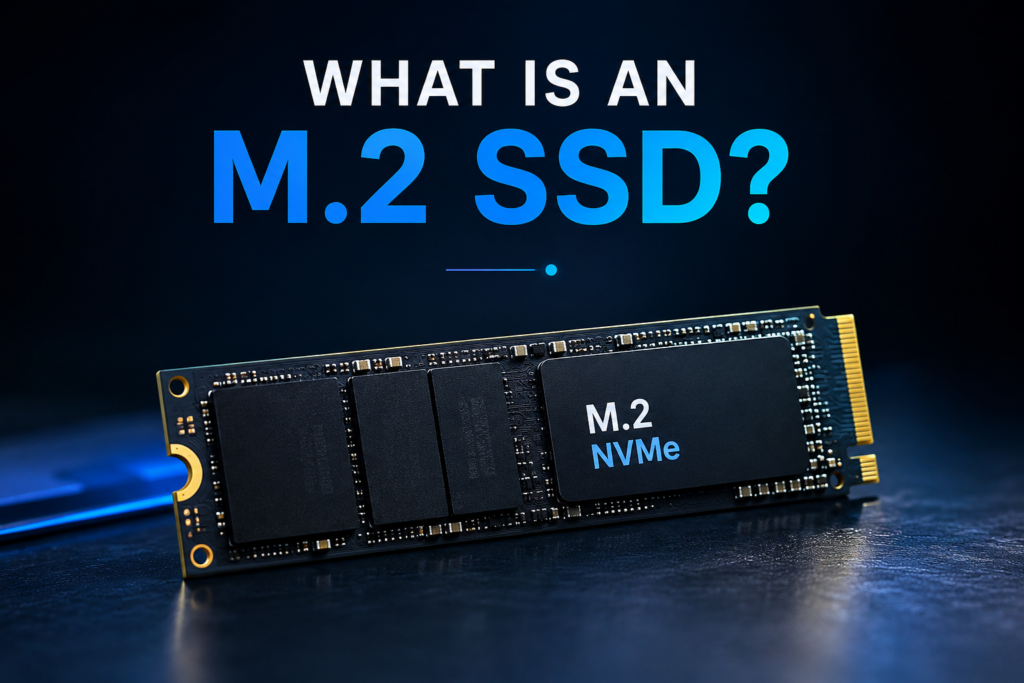
An M. 2 drive is a small solid-state drive that is inserted into a flat slot in the motherboard of the computer. The M. is a 3.5-inch SSD that differs from traditional mechanical 3.5-inch hard disk (HDD) devices; the M. 2 SSD doesn’t need any cumbersome SATA power or data cables.
These drives come in various physical dimensions, identified by four-digit numbers:
- 2280 (22mm x 80mm): The common standard used in nearly all desktop motherboards and standard laptops.
- 2230 (22mm x 30mm): Compact drives typically used in handheld video-game consoles and ultra-thin laptops.
- 2242 & 2260: Medium-length sizes for use in specialized OEM systems.
Most importantly, M.2 is only a physical specification. An M.2 slot can provide older AHCI protocols, SATA speeds, or modern PCIe lanes.
What Is an NVMe SSD?
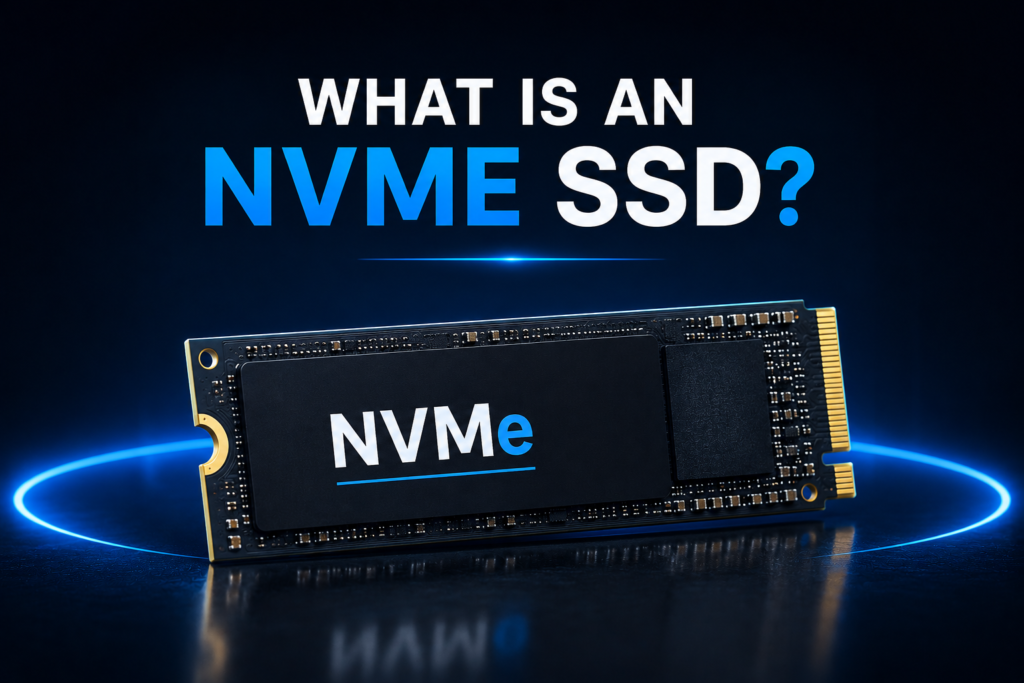
During its design, NVMe (Non-Volatile Memory Express) was built from the ground up to support the rapid transfer of data from high-speed NAND Flash memory. Previous storage protocols such as AHCI were designed for use with mechanical spinning hard disk drives, and simply aren’t able to keep up with the demands of today’s flash chips.
The NVMe drive interface eliminates these legacy limitations by using PCIe (Peripheral Component Interconnect Express) lanes directly to your processor.
An NVMe SSD vs m.2 SSD running over PCIe NVMe architecture operates on up to 64,000 parallel command queues as opposed to just one queue per line as in legacy SATA architecture. This is tremendous speed of read/write, ultra-low latency, and seamless multitasking performance, for high-demand applications.
If you’re replacing your existing drive instead of starting from scratch, follow our guide on how to clone a hard drive to migrate Windows, applications, and files to your new NVMe SSD without reinstalling the operating system.
NVMe vs M.2 — Key Differences
It’s a common error to directly compare M. 2 vs. NVMe. One is geometric, and one is a language for computation. These two specifications work together in your system as described below:
| Feature | M.2 | NVMe |
|---|---|---|
| Category | Physical Form Factor (Shape & Size) | Data Transfer Protocol (Language) |
| Primary Interface | M.2 Slot (B-Key, M-Key, or B+M Key) | PCIe Bus (x2 or x4 lanes) |
| Max Theoretical Speed | Varies (~600 MB/s on SATA, up to ~14,000 MB/s on PCIe 5.0) | Up to 14,000+ MB/s (Gen 5 x4) |
| Legacy Compatibility | Supports both SATA and PCIe interfaces | Exclusively built for PCIe bus architecture |
| Cable Requirements | None (Plugs directly into the motherboard) | None (Direct bus connection) |
| Best Use Case | Space-saving builds, laptop upgrades, PS5 expansion | High-performance gaming, 4K/8K video editing, heavy workloads |
SATA M.2 vs NVMe M.2
Any NVMe vs Sata comparison really comes down to the connector’s signal type, since the M.2 form factor can carry either one. That’s why two drives can look identical but perform completely differently once you plug them in
- SATA M.2 SSDs: These drives are physically built using the M.2 form factor, but are limited to SATA III speeds (up to 550-560 MB/s). These are just regular 2.5” drives nicely formed into a stick.
- NVMe M.2 SSDs: This combination of the M.2 board format and the PCIe data transfer rate can deliver speeds ranging from 3,500 MB/s to more than 14,000 MB/s.
| Specification | SATA M.2 SSD | NVMe M.2 SSD |
|---|---|---|
| Peak Sequential Read | ~560 MB/s | 3,500–14,000+ MB/s |
| Bus Protocol | AHCI via SATA | NVMe via PCIe |
| System Overhead | Higher CPU latency | Extremely low CPU latency |
| Price Point | Entry-level / Budget | Entry-level to Premium |
PCIe Generations: Gen 3 vs Gen 4 vs Gen 5
When shopping for an NVMe drive, you will see references to different PCIe generations:
- PCIe 3.0: Top speeds around 3,500 MB/s. Excellent for everyday productivity and budget PC builds (e.g., Crucial P3 Plus or Kingston NV2 running in Gen 3 modes).
- PCIe 4.0: Top speeds around 7,000–7,500 MB/s. The sweet spot for modern mid-to-high-end gaming PCs, Windows 11 workstations, and the PS5 (e.g., WD Black SN850X, Samsung 990 Pro).
- PCIe 5.0: Top speeds exceeding 12,000–14,000 MB/s. Extreme enthusiast tier requiring a thick passive heatsink or active cooling fan to prevent thermal throttling.
Real-World Performance
The apparent speed difference between the NVMe drive with a 7,000 MB/s speed and the SATA drive with a 550 MB/s speed is approximately 12 times. However, do these synthetic benchmark numbers mean anything in real life?
- Windows 11 Boot Time: If you have a SATA drive, booting Windows will take about 12-15 seconds. This reduces to 8-10 seconds with an NVMe drive.
- Gaming load times: In most modern titles, an NVMe drive shaves 1-3 seconds off load screens compared to a SATA drive. It’s not night-and-day for older games, but it adds up if you’re jumping between levels or maps often.
- Video Editing & Large File Transfers: Transfers of a large 50GB raw video file take almost 1.5 minutes on a SATA drive, but less than 10 seconds when using a dedicated DRAM Cache with a Gen 4 NVMe drive.
- Everyday Multitasking: Running a dozen browser tabs alongside background apps and a file copy is where NVMe quietly earns its keep — the system stays responsive instead of stuttering, which is the main thing SATA users notice once they switch.
Compatibility — Will NVMe Work in Every M.2 Slot?
One of the biggest buying mistakes PC builders make is assuming that if a drive physically fits into an M.2 slot, it will automatically work. Motherboard slots are keyed differently using small plastic dividers:
- M-Key Slots: Designed for high-speed PCIe x4 drives (NVMe).
- B-Key Slots: Designed for older SATA and PCIe x2 drives.
- B+M Key Drives: Feature two cutouts for maximum physical compatibility across older slots.
Before buying, check your motherboard manual:
- Some older motherboard models have M.2 slots that only accept SATA drives.
- In older systems, you may need a BIOS update to enable booting from an NVMe drive.
Unlike desktops, many laptops have only one short M.2 drive — and some high-end ultrabooks have the storage unit permanently mounted to the motherboard, so you can’t upgrade even if you wanted to.
Choosing an NVMe M.2 SSD for PS5
When you’re looking to add more storage to your PlayStation 5 console, you need a high-performance M.2 drive:
- Form Factor: M.2 2280 size.
- Interface: PCIe 4.0 x4 NVMe SSD.
- Read Speed: Minimum recommended 5,500 MB/s or faster.
- Thermal Management: Must include a low-profile heatsink.
The Samsung 990 Pro and the WD Black SN850X are the best options, and the Crucial P3 Plus or Kingston NV2 is ideal for standard PCs.
Which SSD Should You Buy?
You need to choose the storage that will meet your daily needs and budget:
- If you’re using an Office PC or for browsing every day, an affordable M2 SSD like the Kingston NV2 or another Crucial P3 Plus should be sufficient without breaking the bank.
- For PC Gaming & PS5 Storage: Go for a mainstream PCIe 4.0 drive with speeds at 5000 – 7000 MB/S (e.g., WD Black SN850X).
- For 4K/8K Video Editing & Heavy Workstations: Research and buy a best-in-class PCIe 4.0 or PCIe 5.0 drive with an integrated DRAM Cache and a solid heatsink (e.g., Samsung 990 Pro).
- Budget Builds: If you just need reliable storage without extra bells and whistles, an entry-level NVMe drive like the Kingston NV2 or Crucial P3 Plus gets the job done without stretching your budget.
- Laptop Upgrades: Always consult the manual before purchasing anything for a laptop; some ultrabooks don’t even support long 2230/2242 drives, and some of them have the storage attached for good measure and without a way to upgrade it.
Frequently Asked Questions (FAQs)
Is NVMe better than M.2?
They aren’t directly comparable because M.2 is a physical shape (form factor) and NVMe is a transfer protocol. However, an NVMe M.2 drive is significantly faster than a SATA M.2 drive.
Is every M.2 SSD an NVMe drive?
No. Some M.2 drives use the legacy SATA protocol. Always read the product label carefully.
Can I replace a SATA M.2 drive with an NVMe drive?
Only if your motherboard’s M.2 slot supports the NVMe protocol (M-Key or dual-mode).
Is NVMe worth it for gaming?
Yes. Modern game engines utilizing DirectStorage on Windows 11 require high-speed NVMe storage to eliminate in-game texture pop-in.
Does my motherboard support NVMe?
Most motherboards released within the last 6–8 years feature at least one NVMe-compatible M.2 slot.
Conclusion
The explanation of NVMe vs m.2 is simple—physical design vs internal communication. The shape of the drive (M.2) is nothing new; it is the headless, cable-less form of the drive, while NVMe is a new, extremely fast protocol that enables the ultra-fast PCIe storage to communicate with the CPU via high-speed PCIe lanes. Always make sure to check back your motherboard for compatibility, see if your slot can handle PCIe bandwidth, and select an SSD that is geared towards the specific workload you do every day.