
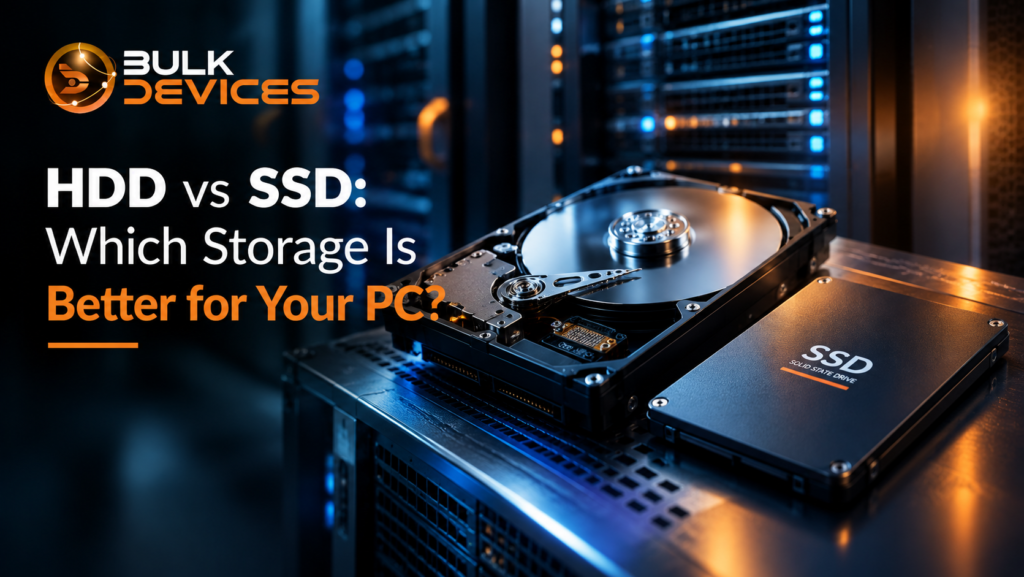
Quick Answer: HDD vs SSD — Which Is Better?
There is no single winner between an HDD and an SSD. SSDs are better for speed, quick boot times, gaming, and everyday PC use, while HDDs offer more storage for your money and remain useful for backups and large media collections.
- SSD: Faster, quieter, and more responsive, with no moving parts.
- HDD: Cheaper per gigabyte and useful when you need lots of storage.
- Gaming: An SSD can reduce game loading times and make the PC feel much faster.
- Video editing: An SSD works well for active projects and scratch files, while an HDD can store completed projects.
- Best overall setup: For many PCs, using an SSD for Windows and applications alongside an HDD for larger files gives you the best balance.
HDD vs SSD for PC: What Should You Choose?
Choosing storage is not just about picking the drive with the biggest number on the box. The right option depends on how you use your PC, how much space you need, and how much you want to spend.
So, what is the difference between HDD and SSD? This guide looks at how both types of storage work, their speed, reliability, lifespan, price, power use, and practical uses. By the end, you should have a much clearer idea of the best storage for PC use in your situation.
What Is an HDD?
An HDD, or hard disk drive, stores data on spinning magnetic platters and uses a moving read/write head to access that information. It is a mechanical storage device, which is why an HDD works differently from an SSD.
Inside a typical HDD, one or more spinning platters rotate while the read/write head moves across their surface to find and record data. Desktop hard drives commonly operate at speeds such as 5400 RPM or 7200 RPM. RPM means revolutions per minute.
This mechanical design has been used for decades and remains useful because HDDs can provide large amounts of storage at a relatively low cost.
HDD cache size can also affect how a drive handles frequently accessed data, although it is only one part of overall drive performance.
For buyers looking for additional desktop storage, you can browse our range of desktop hard drives at BulkDevices.
HDDs are particularly useful for storing large photo collections, videos, documents, backups, and other files that do not need to be accessed constantly. If your main priority is getting several terabytes of storage without spending as much as you would on an SSD, an HDD can still make a lot of sense.
What Is an SSD?
An SSD, or solid-state drive, stores data using NAND flash memory rather than spinning magnetic platters. Because an SSD has no moving parts, it can access data much more quickly than a traditional mechanical hard drive.
That difference is easy to notice during everyday use. Windows can start faster, applications can open more quickly, and files can be accessed with less waiting.
SSDs come in different forms and interfaces. SATA SSDs use the SATA interface, while NVMe SSDs connect through PCIe and can offer much higher transfer speeds when the PC and drive support them.
For anyone planning to buy an SSD UK shoppers can compare the available options in the browse our range of solid state drives section at BulkDevices.
An SSD is often the better choice when the drive will hold your operating system, frequently used applications, or games. Its lack of moving parts also makes it a useful option for laptops and other systems that may be moved regularly.
Speed Compared: Boot Times, Load Times, File Transfers
For an SSD vs HDD speed comparison, SSDs are the clear winner in most everyday tasks. The biggest difference comes from the way each drive accesses data.
An HDD has to physically move its read/write head and wait for the platter to rotate into position. An SSD can access stored data electronically, without waiting for mechanical parts.
Boot times and application loading
An SSD can make a PC feel dramatically more responsive when starting Windows and opening applications. Programs that take noticeable time to load from an HDD can usually start much more quickly from an SSD.
The difference is also noticeable when switching between applications, opening large folders or carrying out tasks involving lots of small files.
File transfers
The result depends on the type of transfer. Sequential read/write performance matters when moving large, continuous files, such as a video file. Random read/write performance matters more when accessing many smaller pieces of data.
It is also important not to treat every SSD as equally fast. A SATA SSD and an NVMe SSD use different interfaces, so their performance can differ significantly. The rest of the PC can also limit the result.
In simple terms, an SSD makes the biggest difference when the computer is regularly reading and writing data. An HDD can still handle large file storage well, but its mechanical design makes it slower for many everyday tasks.
Reliability and Lifespan Compared
When considering SSD vs HDD reliability, neither technology should be treated as completely failure-proof. Both can fail, so important files should always have a separate backup.
HDDs have moving mechanical components, including spinning platters and a moving read/write head. These parts create more potential points of mechanical failure. Physical shocks can also be a concern, particularly when an HDD is operating.
SSDs have no moving parts, which gives them an advantage against physical shock and vibration. However, SSDs use flash memory that has a finite number of write cycles.
This is where write endurance, often listed as TBW or terabytes written, becomes useful. TBW is a manufacturer’s rating for the amount of data that can be written to a drive over its rated endurance period. It should not be confused with a guaranteed date when the SSD will stop working.
You may also see MTBF, or mean time between failures, in drive specifications. It is a reliability measure used by manufacturers, but it should not be read as a prediction that a particular drive will definitely last for that exact number of hours.
For normal home and office use, either type of drive can provide years of service when used properly. Regular backups remain more important than choosing one technology based only on lifespan claims.
Price Per GB: Why HDDs Still Win on Capacity
When comparing price per GB SSD vs HDD, HDDs generally have the advantage, especially when you need a large amount of storage.
An SSD can be an excellent investment for your operating system and frequently used files. However, buying several terabytes of SSD storage can cost considerably more than getting the same raw capacity from an HDD.
That is why HDDs continue to make sense for budget-conscious buyers, desktop PCs with large media libraries, and backup or archival storage.
For example, someone who keeps years of family photographs, videos and documents may not need every file sitting on an SSD. An HDD can provide plenty of space while keeping the overall storage budget under control.
Form factor is another consideration. Desktop HDDs commonly use a 3.5-inch form factor, while laptop drives and many SATA SSDs use a smaller 2.5-inch form factor. Always check what your PC case, motherboard, and mounting system support before purchasing a drive.
Noise, Heat, and Power Consumption
SSDs generally have an advantage when it comes to noise, heat, and power use. Because an SSD does not have a motor or spinning platter, it operates silently.
An HDD, on the other hand, can produce a low spinning sound and occasional clicking or movement noise as its mechanical components operate. In a quiet desktop, this can be noticeable.
Power consumption also varies between individual drives, but mechanical HDDs need power to keep their platters spinning and operate their moving parts. SSDs generally use less power, which can be particularly useful in laptops.
Lower power use can also mean less heat generated by the storage device itself. However, the overall temperature of a PC depends on many components, including the processor, graphics card, airflow and cooling system.
For a desktop PC that stays in one place, the difference may not matter much. For a laptop, quieter operation and lower power use can be more valuable.
Which Is Better for Gaming, Video Editing, and Everyday Use?
The right choice changes depending on what you do with your PC. Looking at SSD vs HDD for gaming, video editing, and everyday tasks makes the differences much easier to understand.
Gaming
An SSD is generally the better choice for modern gaming. Games can contain large amounts of data, and faster storage can reduce loading times.
An SSD will not automatically increase your graphics performance or turn a low-end graphics card into a high-end one. Its main benefit is faster data access and shorter waits during loading.
An HDD can still be used for games, particularly when storage capacity matters more than loading speed. However, an SSD is usually the more comfortable choice for frequently played titles.
Video editing
Video editors often benefit from SSD storage for active projects. An SSD can work well as a scratch disk, where software stores temporary files and data while editing.
Large completed video files can then be moved to an HDD for longer-term storage. This approach can keep the faster storage available for work that needs it while using the cheaper capacity of an HDD for finished projects.
Everyday PC use
An SSD can make the whole computer more responsive for browsing, with Office applications, reading e-mail, and other general Windows applications.Moving the OS from an HDD to an SSD can make day-to-day tasks feel faster, even with an older processor.
Bulk storage
An HDD is a solid option when it comes to storing all your media content in bulk, backups, and if you have many files. An HDD may be a better choice if you require a lot of storage space and are not using all the files regularly.
Can You Use Both? Hybrid Storage Setups
Yes. For several desktop computers, a combination of SSD and HDD together is one of the most practical storage solutions.
The easiest way is to have the SSD as the boot drive. Frequently used applications and the most-used games can remain on the SSD. The HDD can then serve as storage for photos, video, documents, downloads, backups, etc.
This gives you the speed of an SSD without the need to store every file on expensive solid-state storage.
A dual-drive machine can be quite beneficial for a gaming station, editing workstation or home computer equipped with a vast amount of media files. You can also decide which data to store based on how frequently you are using it, and not on the type of drive.
For example:
- SSD: Windows and everyday applications
- SSD: Frequently played games
- SSD: Current video-editing projects
- HDD: Photos and videos
- HDD: Older projects
- HDD: Local backups and large downloads
Just remember that an SSD and HDD in the same PC are not a replacement for a proper backup strategy. If a file is important, keep another copy on a separate device or backup system.
HDD vs SSD Side-by-Side
| Feature | HDD | SSD |
|---|---|---|
| Speed | Slower, especially for random access | Much faster for most everyday tasks |
| Price per GB | Usually lower | Usually higher |
| Large capacities | Strong value for bulk storage | More expensive at high capacities |
| Moving parts | Yes | No |
| Noise | Can produce spinning and mechanical noise | Silent |
| Power draw | Generally higher | Generally lower |
| Shock resistance | More vulnerable to physical shock | Better suited to movement and vibration |
| Gaming | Works, but loading can be slower | Usually the better choice |
| Everyday PC use | Functional but less responsive | Fast and responsive |
| Bulk storage | Excellent choice | Useful, but often more expensive |
| Best fit | Backups, archives and large file collections | OS, apps, games and active files |
So, HDD vs SSD which is better? It depends on what matters most to you. If speed and responsiveness come first, choose an SSD. If maximum capacity for your budget matters most, an HDD remains a sensible option.
Common Mistakes When Choosing Between HDD and SSD
A common mistake when choosing between HDD and SSD is using an HDD as the main operating system drive when the goal is a fast, responsive PC. An HDD can be used to run an operating system, but typically an SSD will have a smoother daily use experience.
Another error is purchasing a significantly larger SSD for files that are seldom used. If you mainly need to store old videos, photos, or backups, an HDD can give you significantly more storage for the same budget.
Also, it is easy to miss the interface. SATA SSDs and NVMe SSDs are different things.
NVMe drives require the right hardware. Before ordering, check your motherboard for compatible slots and supported interfaces.
Lastly, don’t base your decision on any one specification. Capacity, interface, expected workload, endurance, physical compatibility, and cost are all relevant.
Final Verdict: Which Is the Best Storage for PC Use?
The best storage choice depends on your priorities. For most modern PCs, an SSD is the better place for Windows, applications, and frequently used games because it offers much faster access and a more responsive experience.
That does not make HDDs outdated. Their lower cost per gigabyte still makes them highly useful for large media libraries, backups, archives, and other files where capacity matters more than speed.
For many buyers, the smartest solution is not choosing one over the other. A hybrid storage setup with an SSD for active work and an HDD for bulk storage can give you a practical balance of speed, capacity and cost.
If you’re weighing up your choices, you can explore our full range of storage devices at BulkDevices to find storage suited to different PC requirements. Or for the latest deals and product arrivals, see the full range at BulkDevices.
Frequently Asked Questions
Is an SSD always better than an HDD?
An SSD is not always better than an HDD. SSDs are better for speed, responsiveness, gaming, and operating-system storage, while HDDs usually offer better value for large amounts of storage.
How long do SSDs actually last compared to HDDs?
SSD and HDD lifespan varies by model, workload, and usage. SSDs have a rated write endurance, often expressed as TBW, while HDDs have mechanical components that can eventually wear out or fail. Neither should be treated as a permanent storage solution, so important data should always be backed up.
Can I use an SSD and HDD together in the same PC?
Yes, an SSD and HDD can be used together in the same compatible PC. A common setup uses the SSD for Windows and applications, while the HDD stores larger files, media, and backups.
Why are HDDs still cheaper per gigabyte than SSDs?
HDDs generally cost less per gigabyte because their mechanical storage technology provides large capacities at relatively low cost. This makes HDDs particularly useful for bulk storage and archiving.
Do I need an SSD for gaming, or is an HDD fine?
An HDD can run games, but an SSD is generally preferable for gaming because it can reduce loading times and make the overall experience feel more responsive. An HDD remains useful when you need additional game storage at a lower cost.
What is the difference between a SATA SSD and an NVMe SSD?
A SATA SSD connects through the SATA interface, while an NVMe SSD normally uses PCIe. NVMe SSDs can offer much higher performance than SATA SSDs, provided the PC supports the required interface.